
This guide explains how to connect different BLE Gateways to a thingsHub tenant to forward and receive device data in the thingsHub platform
Overview of the Connection Process
-
Create the network connector
-
Get the provided credentials
-
Configure the gateways to send data to thingsHub via the credentials
Create a BLE Gateway Network Connector in thingsHub
Step 1) In the thingsHub, connect to the network server.
-
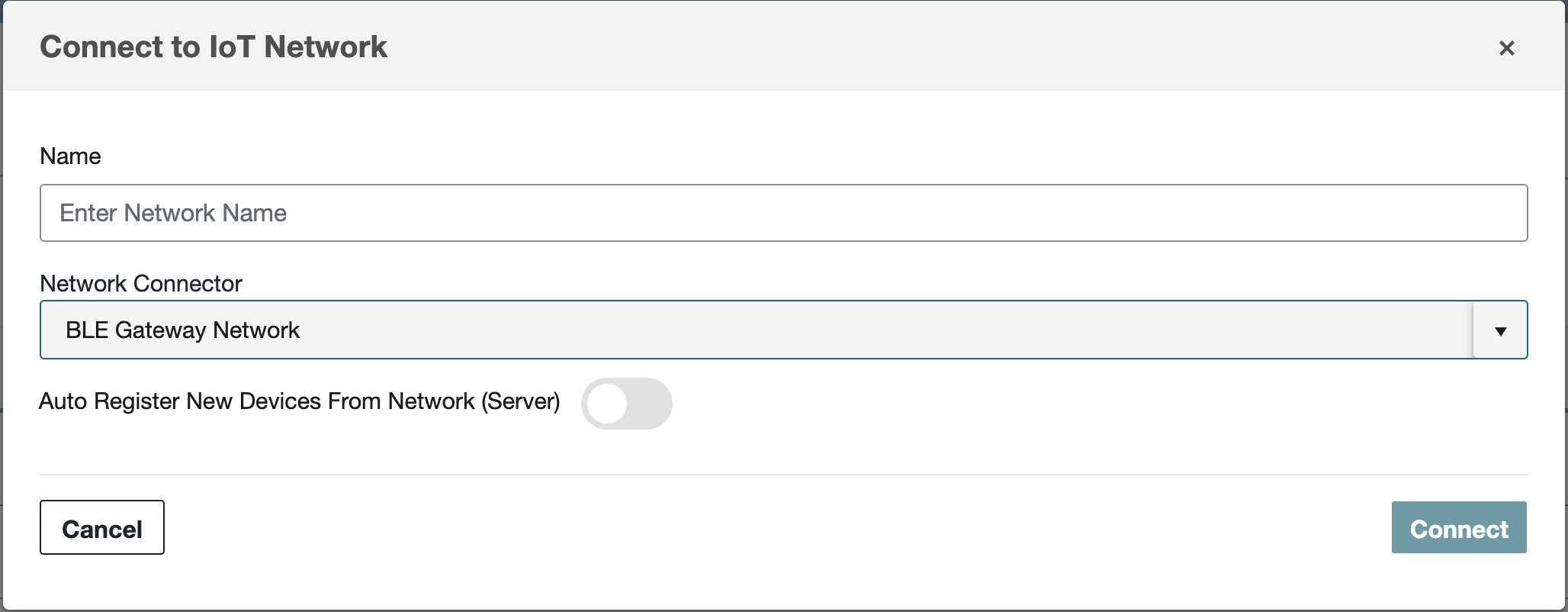
Open your thingsHub tenant, go to Tenant Settings > IoT Network Connections, and then select the New Connection button.
-
In the Connect to IoT Network dialog, enter information in the fields as described in the parameters table below. Then press the Connect button.
The new network connection will first be validated, and if successful, it will be created.
Parameters
The following parameters need to be set when creating a BLE Gateway Network Connector:
|
Parameter |
Description |
|---|---|
|
Name |
The display name of this Network Connection. |
|
Network Connector |
Choose |
Returned Parameters
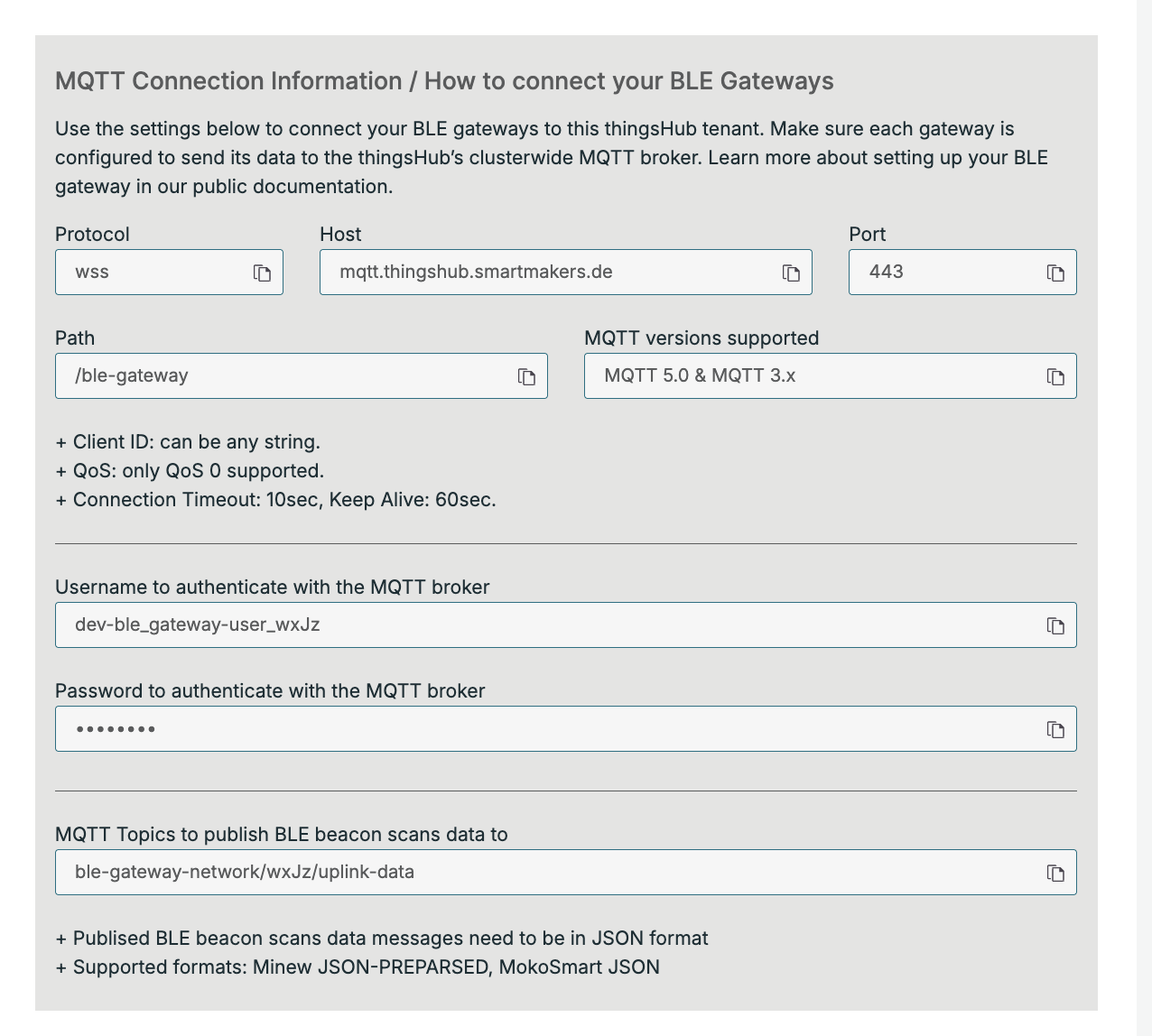
The connector will return the following parameters after the creation step is completed:
-
MQTT URL. The MQTT URL to send and receive messages. This URL consists of the following fields:
-
MQTT Host
-
MQTT Protocol
-
MQTT Port
-
MQTT Path
-
-
MQTT Username
-
MQTT Password
-
MQTT Topics
Setting up Your MG6 BLE Gateway With the BLE Gateway Connector
To set up the Minew MG6 BLE Gateway with an MQTT broker, you need to connect the gateway to a network, access its configuration interface, and enter the MQTT broker details.
Initial Setup & Network Connection
-
Power On: Plug in the MG6 gateway
-
Connect to Network:
The gateway needs to be connected to the internet via ethernet, wifi or 4G. -
Access Configuration Page:
-
Connect to the gateway via ethernet or its dedicated wifi Access Point
-
Log in with the gateway's default password (check the device manual for the specific default, as it may vary)
-
MQTT Configuration
Once logged into the configuration page:
-
Navigate to the Service/MQTT Tab: The interface layout may vary by firmware version, but you should find a section to configure data upload services.
-
Enter MQTT Broker Details: Configure the following parameters:
-
Network Protocol: Select WSS.
-
Server/Host: The IP address obtained after creating the BLE Gateway Connector. The format is:
{protocol}://{host}/{path} -
Port: The port number obtained from the BLE Gateway Connector.
-
Username, Password: The credentials generated by the BLE Gateway Connector.
-
ClientID
-
-
Configure Topics and Payload Format:
-
Status/Publish Topic: Define the topic where the gateway will publish scanned BLE data. This will be the topic generated from the BLE Gateway Network Connector
-
Payload Format: Select the proper format for the data packets.
-
-
Save and Connect: Save your settings and ensure the gateway connects to the BLE Gateway Connector.