
This article describes how Device Owners can use device labels to logically group devices.
Overview
Labels enable you to logically sort and group devices based on shared characteristics, such as installation location or sensor type. For example, you could assign the labels roomsensor and 4th-floor in order to group and analyze data from all the room sensors on the 4th floor of a building.
In addition to organizing and sorting devices, labels are required to do the following tasks:
-
Create Data tables and dashboards.
-
Send device data to external systems via Integrations
Assign a label to a device
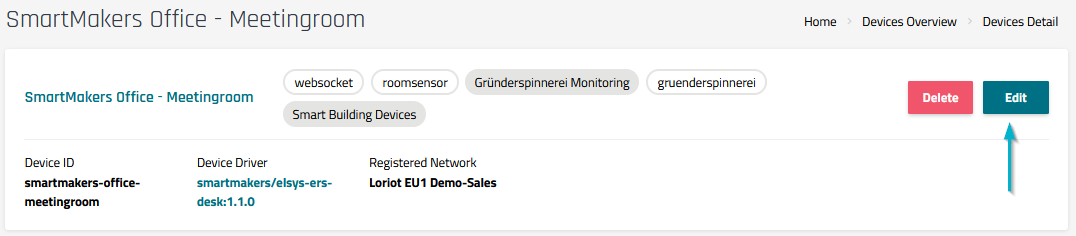
Step 1) In the Device Details page, select the Edit button to open the Edit Device dialog.
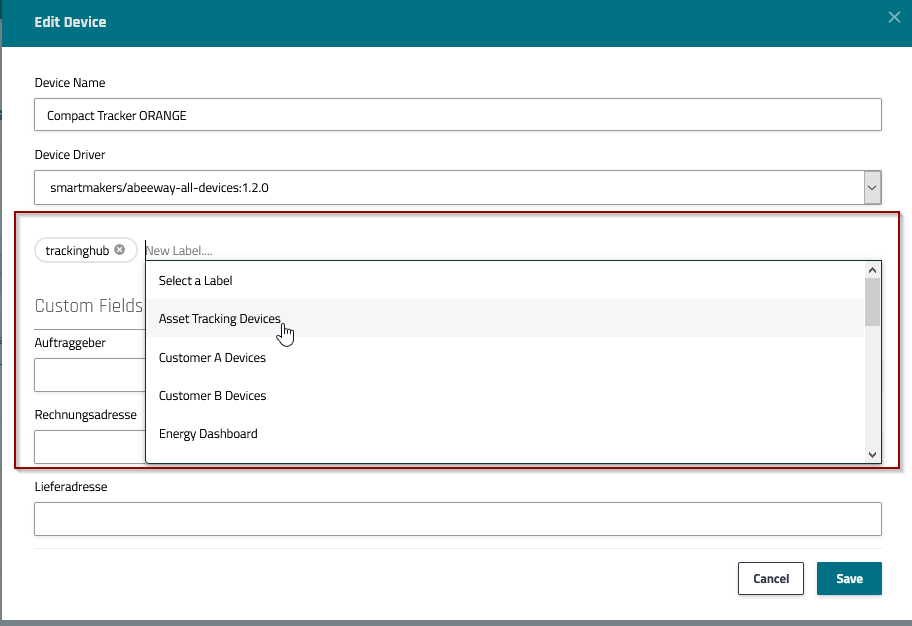
Step 2) In the Edit Device dialog, click 'New Label...' and select a label from the drop-down options list.
-
Note: You can add labels to this drop-down list in the Label Management page. See Add a label to the labels list
Remove a label from a device
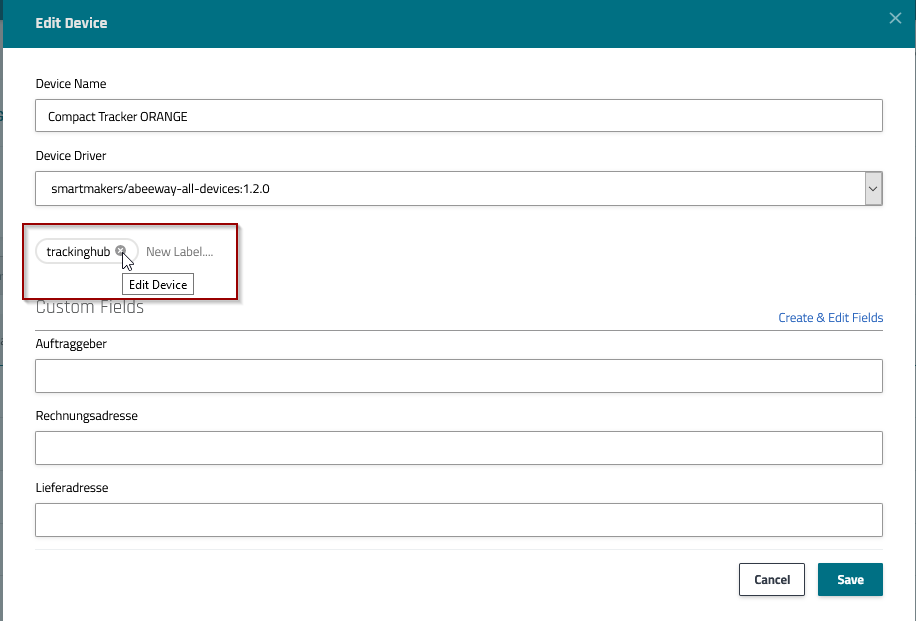
Step 1) In the Edit Device dialog, click the X next to the label name.
Step 2) Press the Save button to save changes and return to the Device Details page.
Add a label to the labels list
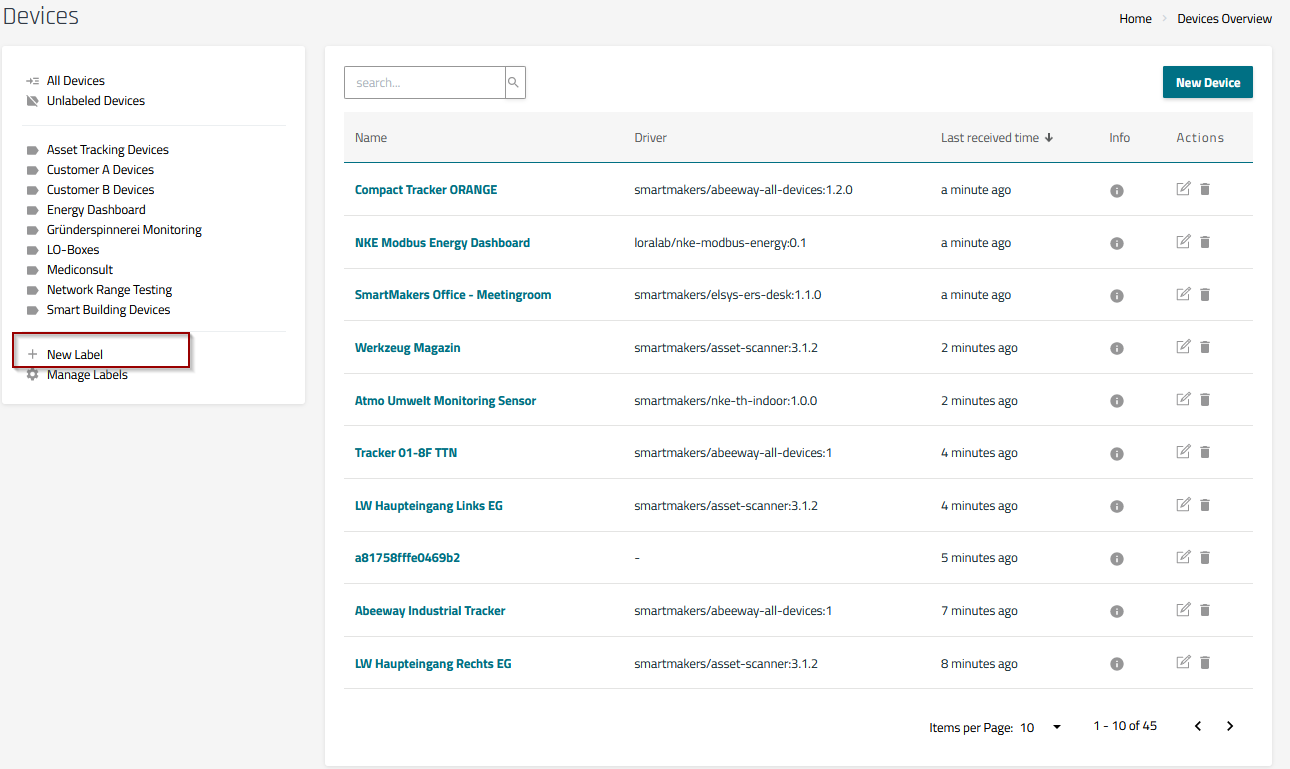
Step 1) From the Devices Overview page, click +New Label in the Labels section. Alternatively, from the Manage Labels page, select the New Label button.
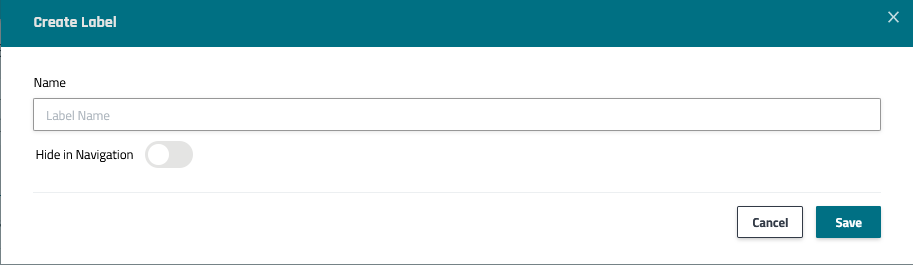
Step 2) In the Create Label dialog, enter a label name then press the Save button. The label can now be assigned to a device using the Edit device dialog.
-
Note: You can toggle between displaying or hiding labels by clicking the Hide in Navigation toggle switch. This display state can be viewed in the Navigation icon located in the Manage Labels page.
Related articles
Adding, editing, & deleting devices
Monitoring data from a single device | comment 2247557243
Managing device drivers | comment 2259386589
Setting up devices using Auto Activation