
This article describes how Asset Tracking Users can find assets with the search box in asset views. It also describes how Tenant Owners can make their own text fields searchable, so that users can find assets by values such as a serial number, a licence plate or an order number.
How it works
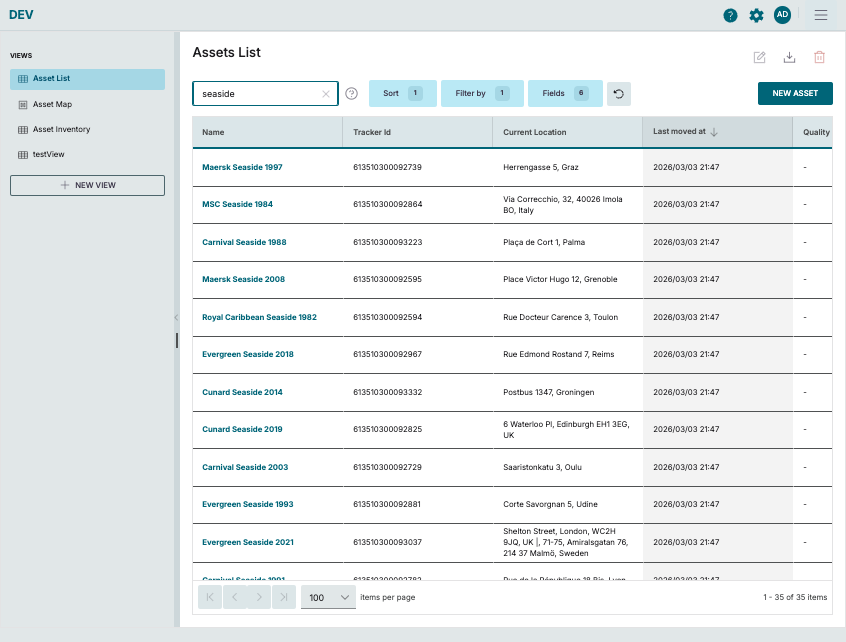
Every asset view has a search box above the table. When you type into it, the thingsHub shows only the assets in that view that contain your text.
The search looks in two kinds of fields:
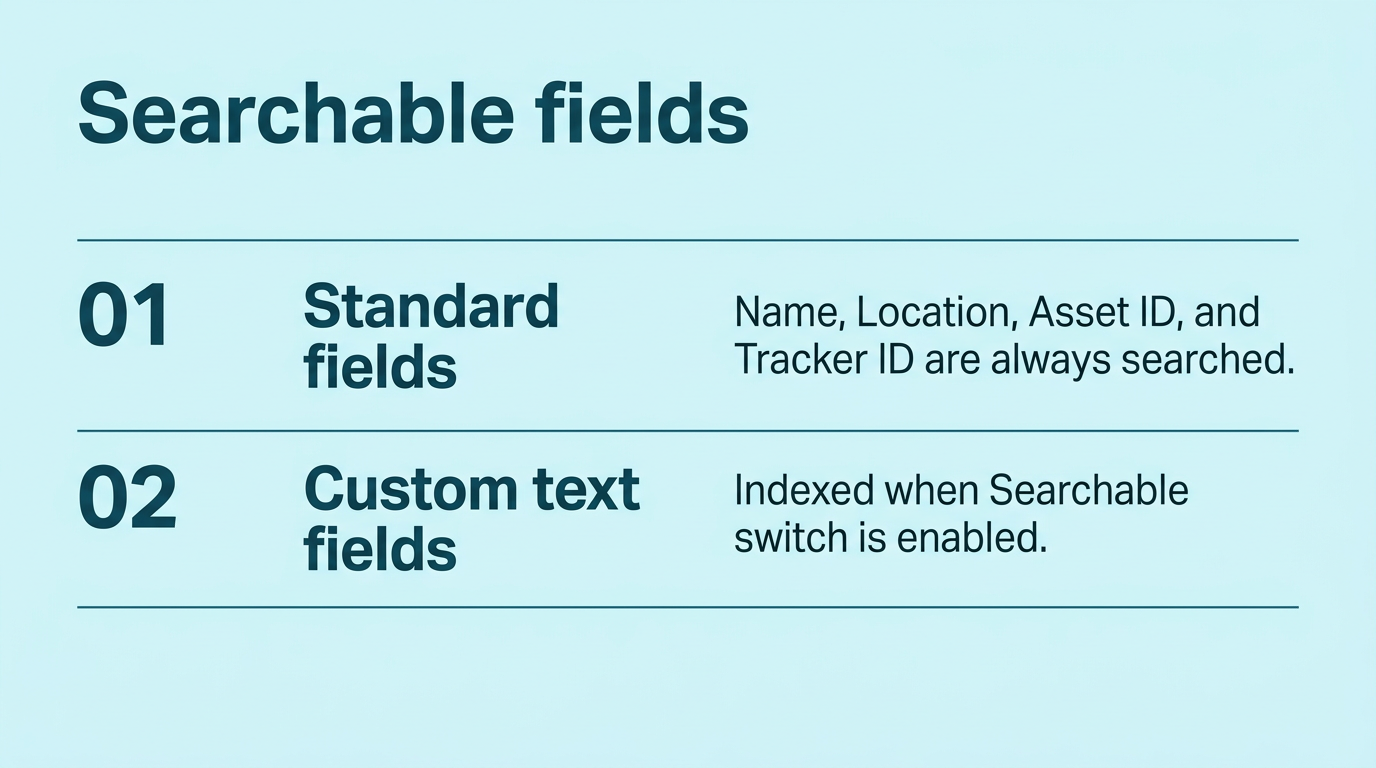
A Tenant Owner decides which custom text fields are searchable. See Make a custom field searchable. A searchable field is searched in every asset view, and you can check the current list with the ? icon next to the search box.
Search terminology
-
Search term. The text you type into the search box.
-
Searchable field. A field the search box looks in. The four fields above are always searchable. Custom text fields are searchable when their Searchable switch is on.
-
View. A saved table of assets with its own filters, sorting and columns. See Managing Fields for how fields and views relate.
How the search matches
-
Anywhere in the value. The search term can be the start, the middle or the end of a value.
sidefindsMaersk Seaside 1997. -
Upper and lower case do not matter.
seaside,SeasideandSEASIDEfind the same assets. This includes letters such as ä, ö and ü:müllerfindsMÜLLER. -
Across all searchable fields. An asset is shown if any of its searchable fields contains the search term, whether or not that field is shown as a column in the view.
-
Inside the current view. The search only looks at the assets the view already shows. The view's filters still apply. To search all assets, use a view without filters.
-
The whole term as typed. Several words are searched as one piece of text, including the spaces and the word order.
seaside maerskdoes not findMaersk Seaside. -
Spaces at the start and end are ignored.
Search for an asset
Step 1) Go to Tracking > Views and select the view you want to search in.
Step 2) Click into the search box above the table and type at least 2 characters.
Step 3) The table updates and shows only the matching assets. The number of matches is shown below the table. Sorting and the selected columns stay as they are.
Step 4) To show all assets of the view again, clear the search box with the × button.
See which fields are searched
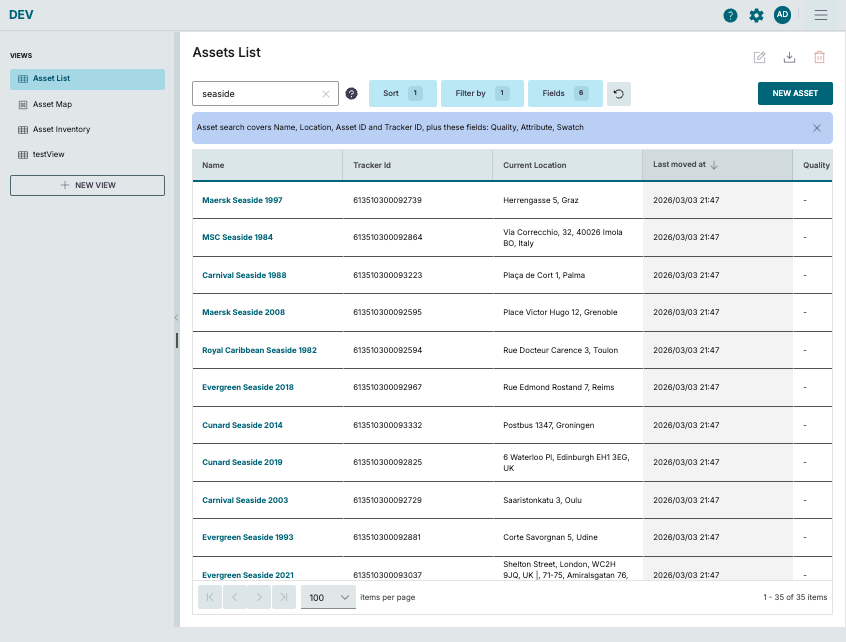
Press the ? icon next to the search box. A bar above the table lists every field the search looks in: the four fields that are always searched, followed by the custom fields that are searchable in your tenant. Close the bar with the × on its right.
Make a custom field searchable
Only Tenant Owners, or users allowed to manage fields, can change this setting. The Searchable switch is only shown for custom fields of the type Text / Single Line Text. System fields and other field types, such as Number, Decimal, Date and Time or Single Select, do not have it.
When you create a new field
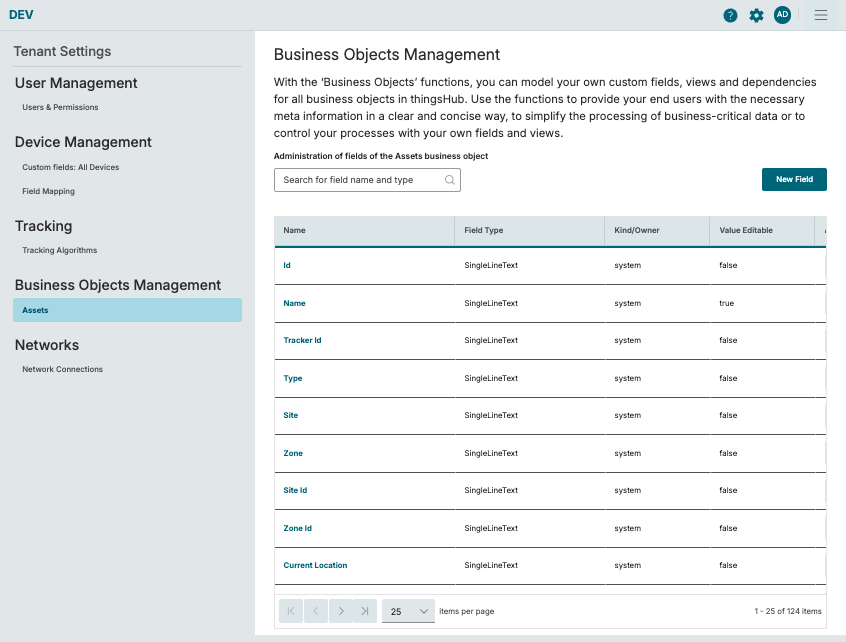
Step 1) Open Tenant Settings with the gear icon at the top right, then go to Business Objects Management > Assets and press the New Field button.
Step 2) In the New business object field sidebar, enter a Name of new field and choose Text / Single Line Text as Type of field.
Step 3) The Searchable switch appears, with the text "Include this field's values when searching assets." It is switched on for new text fields. Leave it on if users should find assets by this field. Switch it off if they should not.
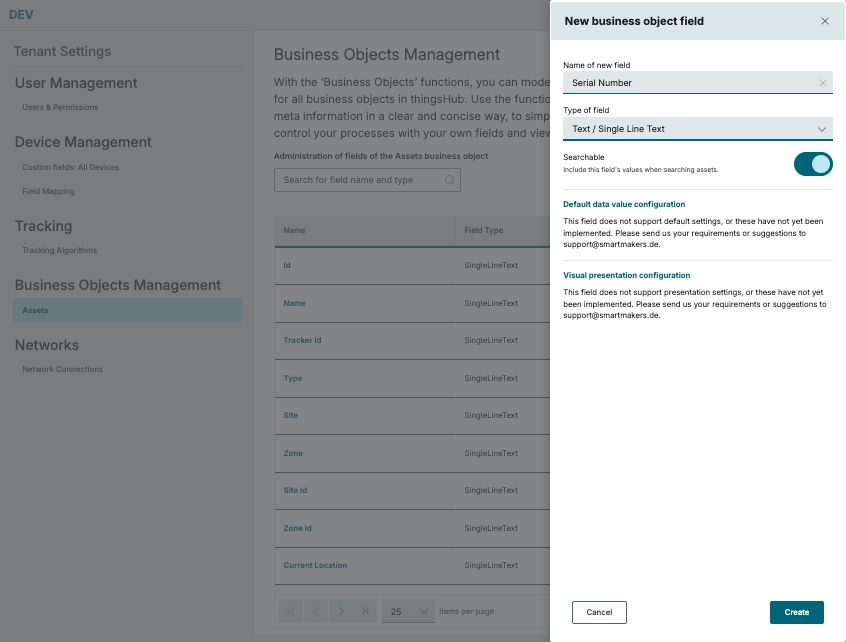
Step 4) Press Create. The field is searchable as soon as it is created.
For an existing field
Step 1) Open Tenant Settings with the gear icon at the top right, then go to Business Objects Management > Assets.
Step 2) In the Actions column of the field, click the edit icon (pencil). The Edit business object field sidebar opens.
Step 3) Turn the Searchable switch on.
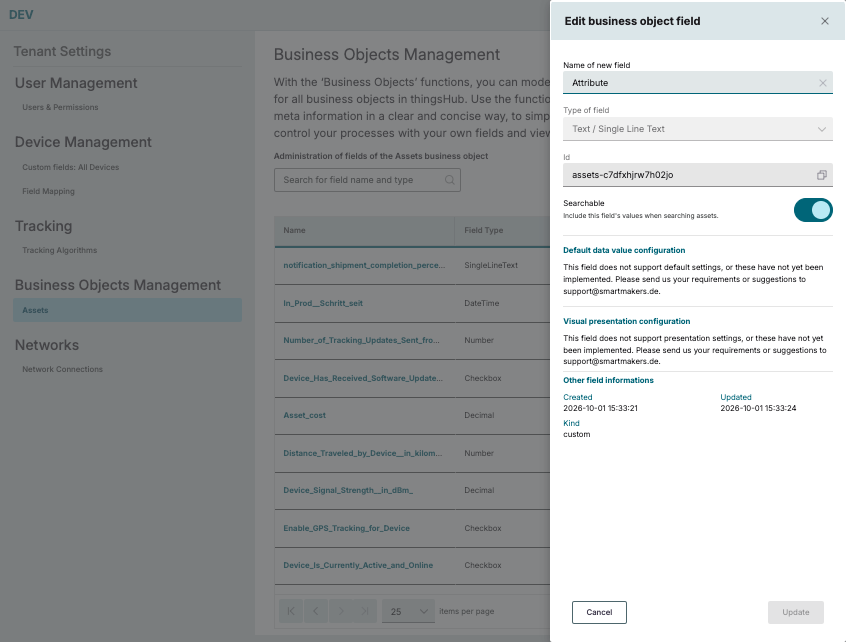
Step 4) Press Update. The button is only active once you have changed something. Saving can take a few seconds on tenants with many assets. When it is done, the search box in every asset view also looks in this field.
Stop searching a field
Edit the field as above, turn the Searchable switch off and press Update. The values in the field stay as they are. Only the search no longer looks in it.
Notes:
-
Don't use
,()or~in the name of a searchable field, otherwise the search skips it. -
Renaming a searchable field keeps it searchable.
-
Deleting a field also removes it from the search.
-
If the message "The asset table is busy, please retry" appears, another change to the asset fields is being saved at the same time. Wait a moment and press Create or Update again. Nothing has been changed.
-
Make only those fields searchable that users actually search by. Each searchable field makes saving new and changed assets a little more work for the system, and many searchable fields can make search slower on large asset inventories.
Things to know
|
Situation |
What happens |
What to do |
|---|---|---|
|
You type only 1 character |
The search does not start. |
Type at least 2 characters. |
|
You search for 1 or 2 characters on a large inventory |
The search works but can take a moment longer. |
Type a few more characters for a faster result. |
|
A word is spelled differently in the data |
No match. The search does not correct spelling or replace letters: |
Search for a shorter part both spellings share, such as |
|
Your search term contains |
|
Usually harmless. Leave it out if you get too many results. |
|
Your search term contains |
|
Leave out |
|
Your search term contains |
No match. |
Search for a part of the text without |
|
A value is in a field that is not searchable |
The asset is not found by that value. |
Ask a Tenant Owner to make the field searchable, or use a filter on that field instead. |
|
The view has filters |
Only assets that pass the filters are searched. |
Search in a view without filters to search all assets. |
Other characters you type into the search box, such as commas, brackets, hyphens, ~ or /, are searched as normal text.